> For the complete documentation index, see [llms.txt](https://www.blenderguppy.com/add-ons/llms.txt). Markdown versions of documentation pages are available by appending `.md` to page URLs; this page is available as [Markdown](https://www.blenderguppy.com/add-ons/panel-cutter/functions/poly-line.md).
# Poly Line
Poly Line is a new operator included in the add-on designed to draw or cut polygonal lines on selected faces. This new functionality gives the add-on its own unique cutter tool whose edge cut results can be turned into panel cuts.
Figure 1
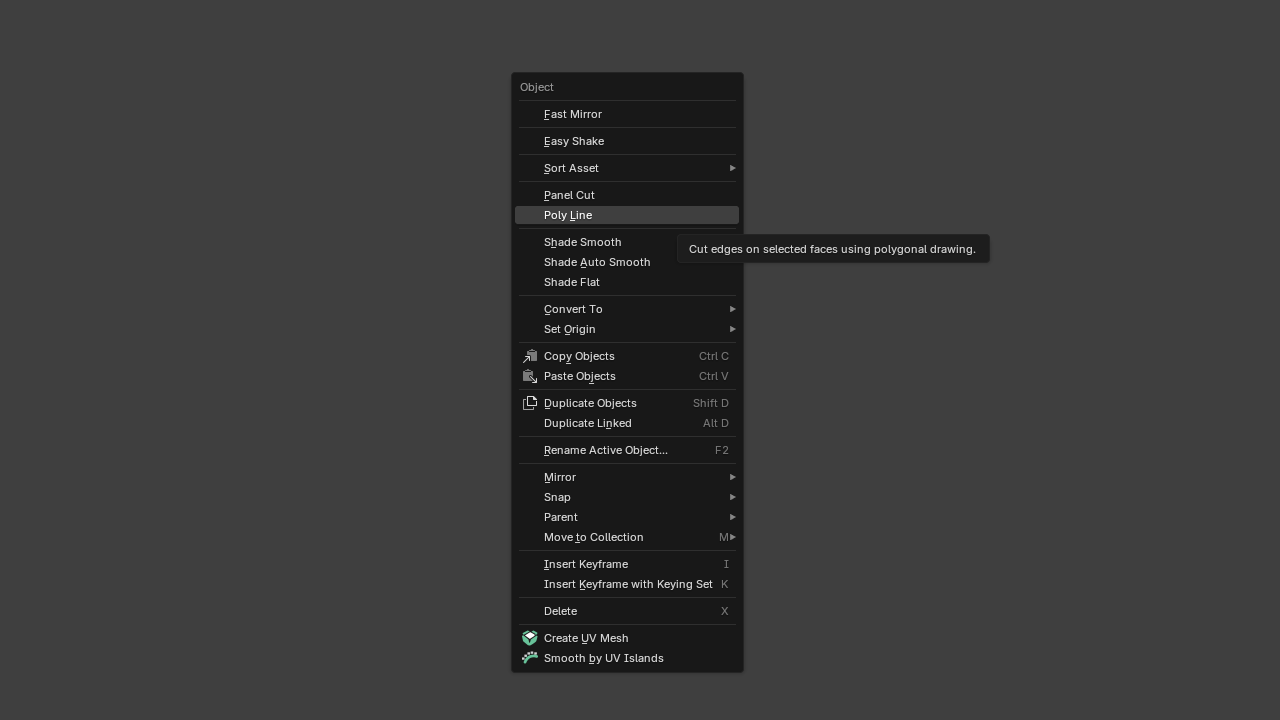
You can find this operator underneath the Panel Cut operator in the W specials menu. This operator only works in edit mode.
The first thing you will notice when first using the operator is that it goes into orthographic view. This is to ensure that the cut lines will be the same as you it in the viewport which is going to be distorted compared to using perspective view.
You can use the middle mouse button to zoom in or out and shift middle mouse button to pan but you will not be able to rotate the viewport.
Figure 2
Cut through is always enabled so faces that are selected will be cut even if they're at the back or side.
Figure 3
The operator UI can be found in the bottom middle part of the viewport:
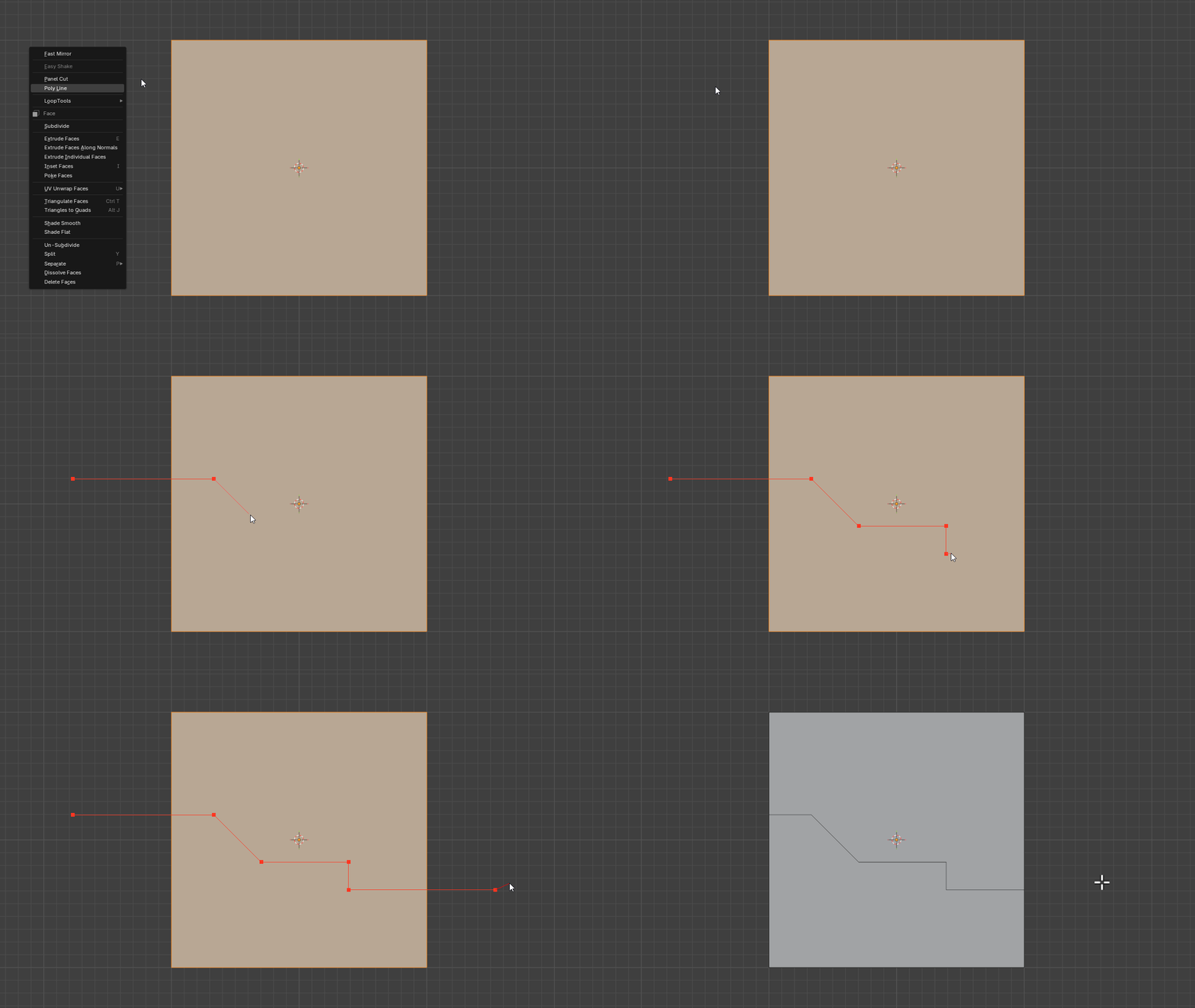
Left mouse button (**LMB**) is used to place the points of the poly line.
You can keep pressing **Shift** as you move the current point so when you create a point using LMB it will snap to 45 degrees from the last point.
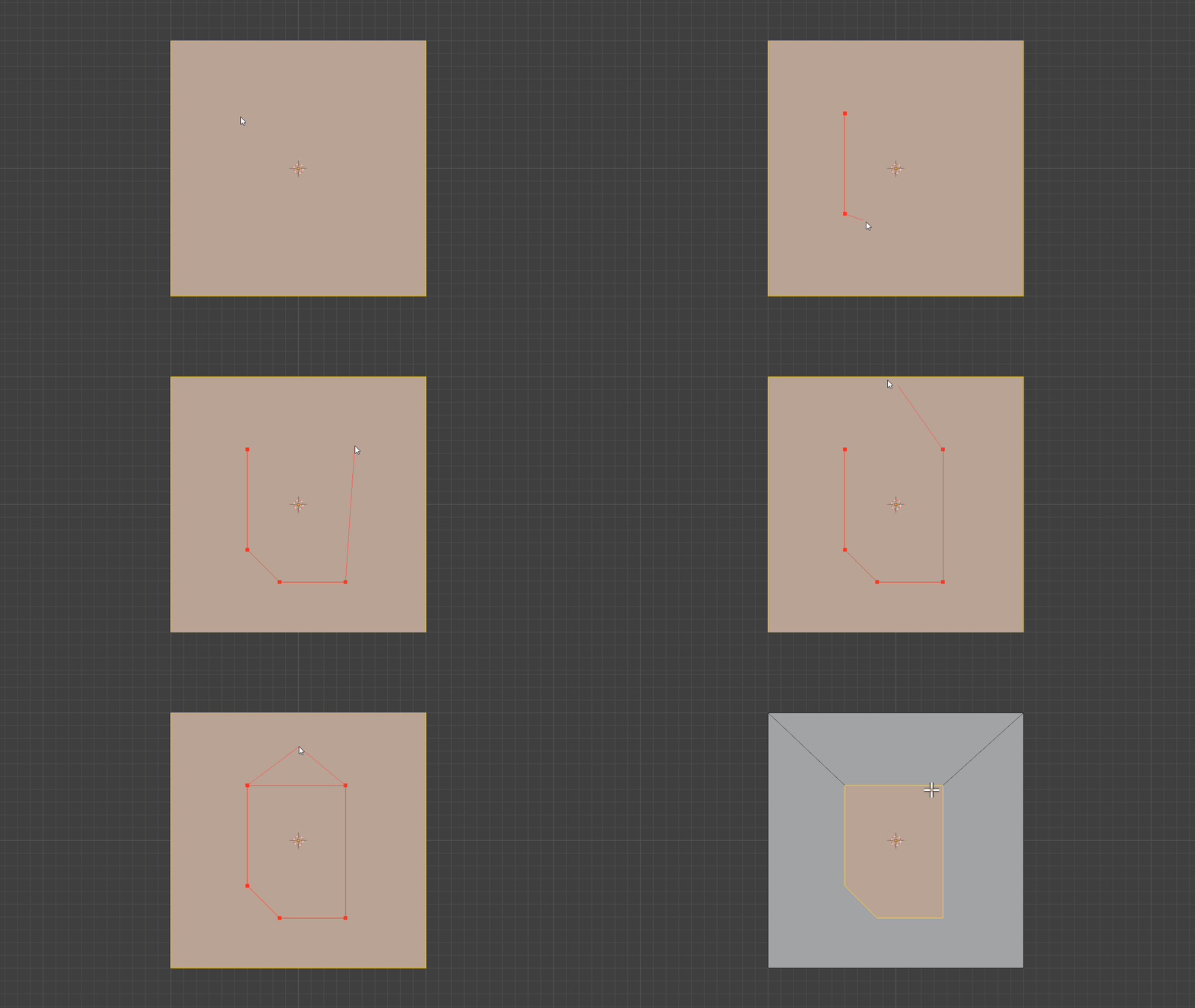
You can press **Alt** so the current or last point will snap perpendicular or lateral to the fist point.
You can press **C** to close the shape. There will a line from the first point to last point when you confirm the operation allowing you to create closed shapes.
You press the right mouse button (**RMB**) to cancel the drawn points or if no points exists will cancel the operation entirely.
Pressing **Enter** or **Space** will confirm the operation.
Pressing **Escape** will cancel the entire operation even if there are points present.
Figure 4
In figure 4, the snapping action is demonstrated using the Shift hotkey. It will only snap as you confirm the point.
Figure 5
When using the Alt hotkey, the current or last point will snap lateral or perpendicular to the first point as shown in the figure above. You can then use the C hotkey to draw a closed shape.
Figure 6
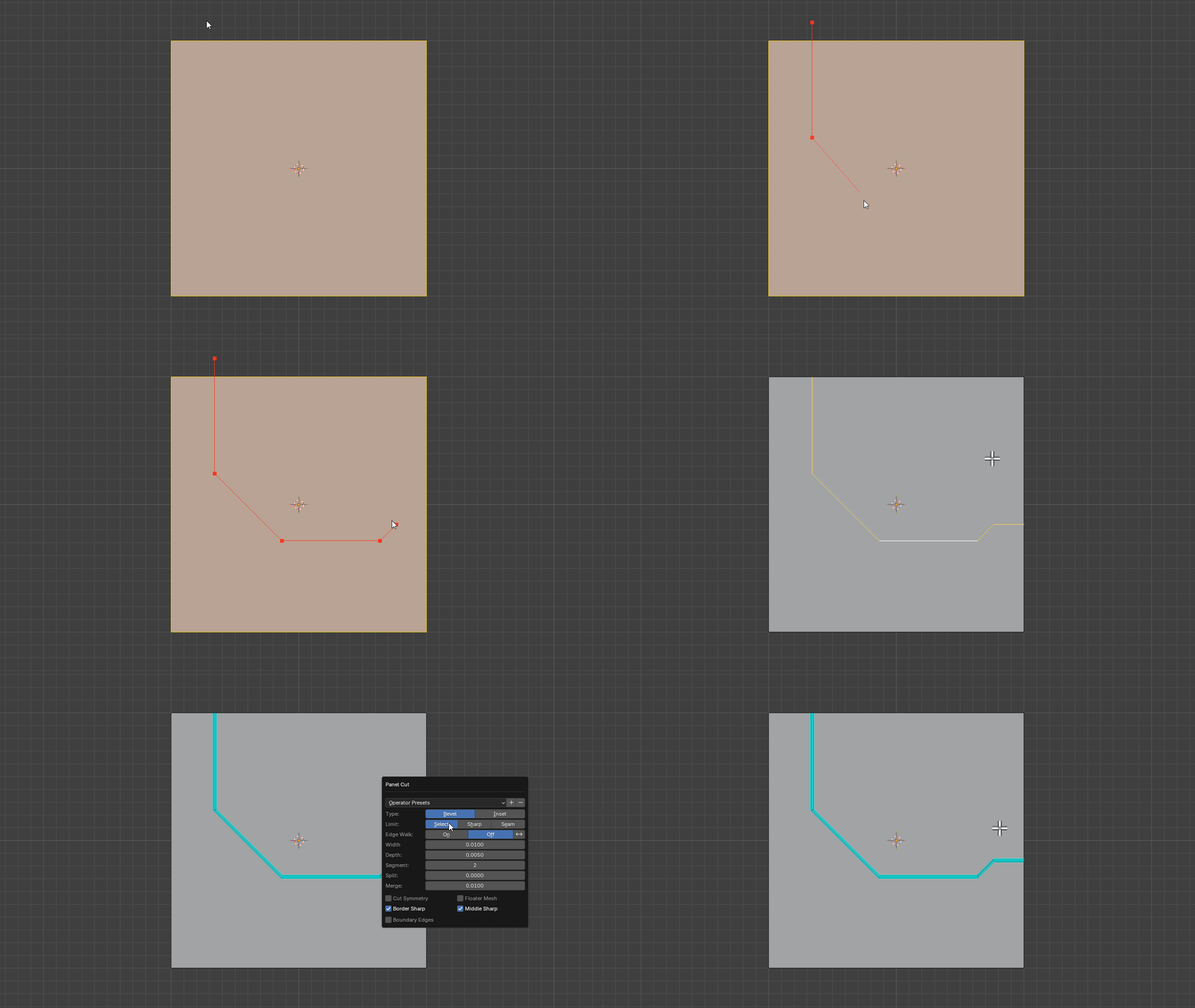
After drawing, you can then select these cut edges and use the Panel Cut operator to create panel cut details from them.